Kris QuickJuly 25, 2025


Review: Mobile Pixels Duex Float 2 Pro
Chetan Joshi
June 18, 2026
A quote that I once heard in passing years ago, has for some reason, resonated with me, states that “Space is a fundamental antidote to the stress of modern living.” That statement is very apt when it comes to the lack of real estate on office desks around the world. Our desks are often so cluttered as we hunch over our laptop screens, concentrating on the work at hand. The dream of extending our monitors would free us from the confines of our laptop monitors. Of course, these days, our work environment may not be fixed to any one location. As more businesses introduce hot-desking and hybrid working patterns, employees have to take their laptops to multiple locations. Who wants the additional burden of carrying a bulky monitor around as well? That’s right, nobody. This is where the Duex Flot 2 Pro from Mobile Pixels enters the fray.
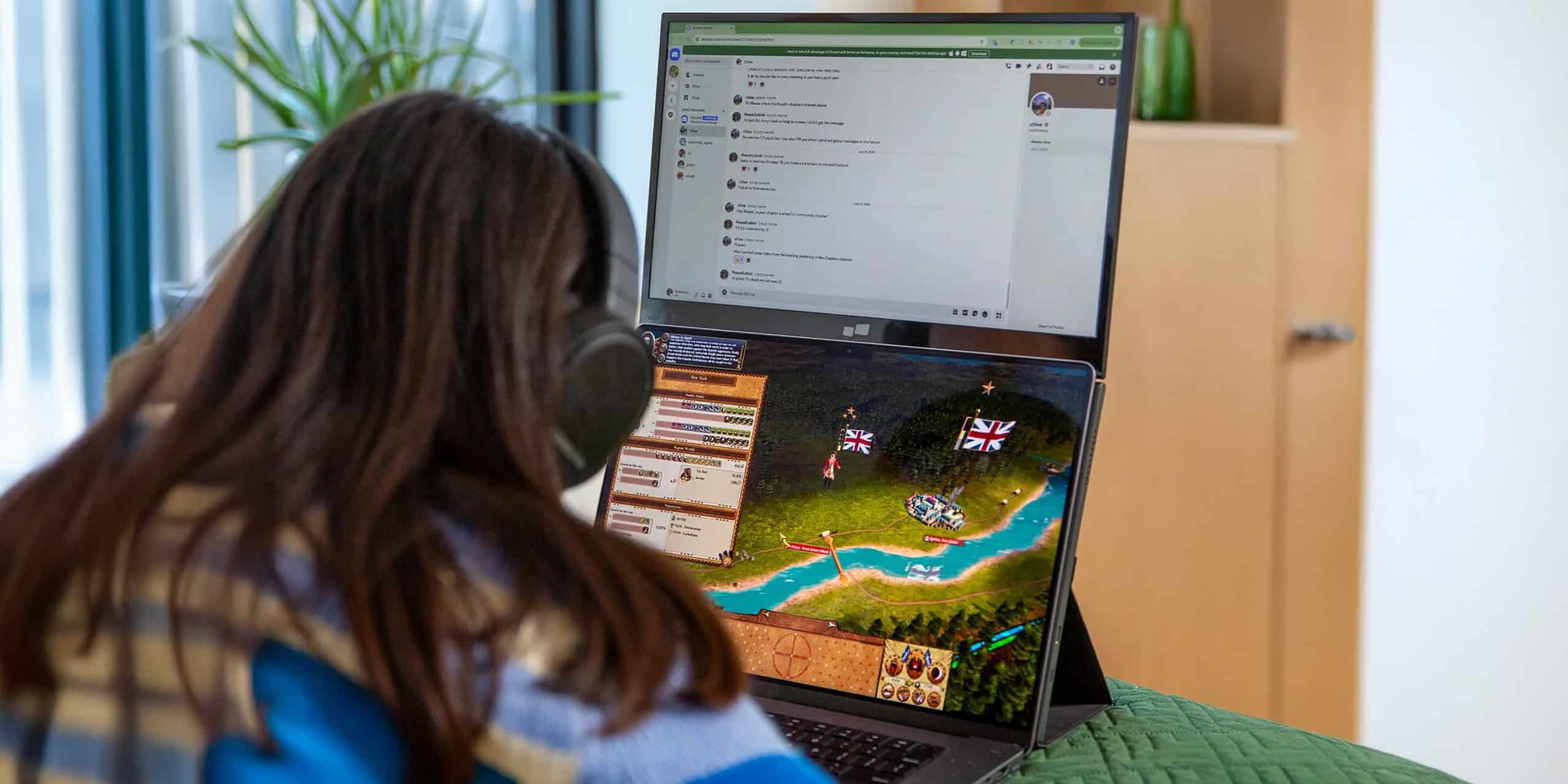
The Duex Float 2 Pro is a portable second-monitor system designed to clip onto the back of a laptop lid and extend outward. It targets users who need extra screen real estate without carrying a separate display or docking station. After weeks of daily use on my Apple MacBook Pro 16″, the device delivers measurable productivity gains but carries clear mechanical and thermal compromises.
What’s In The Box?
Upon opening the box, there is a card template with instructions on how to attach the supplied magnets to the outer case of the laptop.
There is also the Float 2 Pro monitor extender which comes with its own kickstand, a box containing the aforementioned circular magnets, a USB-C to USB-A/C cable which carries 65 W pass-through charging, a mini HDMI-HDMI cable and some circular adhesive stickers.
I panicked when I read the instructions on the template. The prospect of sticking magnets onto my precious MacBook made me feel a little uneasy at first. After I mustered up the courage, I did as instructed. Oh, by the way, there was no Instruction manual in the box. The box containing the cables has a QR code that links to the online instruction manual PDF.
As someone that prefers the simple things in life, I’d have liked a plug ’n’ play set up process. I’m instinctively averse to things that need configuring and setting up, probably because it has historically left me fuming when they don’t work the first time!
Setting up
The Float 2 Pro uses a single aluminium hinge that aligns with the top edge of the laptop. Correct positioning of the magnets will ensure a more seamless transition as you switch between the laptop monitor and Float 2 Pro display. It is advisable to open up the Float 2 Pro and assemble the kickstand before you marry the Float 2 Pro to the outer surface of the laptop. There is some room for adjustment afterwards but the magnets are prohibitively strong. The hinge feels over-damped at first but loosens after roughly 30 open-close cycles. My immedate concern was to do with the stability of the Float 2 Pro with the screen fully opened. I felt the higher centre of gravity might cause the hinge to fail on my laptop or the Float 2 Pro and the whole thing to topple over. But this didn’t happen thanks to the kickstand.
Connection
As you may know, MacBooks don’t have a built-in HDMI port so I connected the Float 2 Pro with the USB cable that is also supplied.
Fortunately, one end of the USB cable has a USB-C to USB-A adaptor. As soon as I connected the Float 2 Pro to my laptop, it lit up and came to life displaying my MacBook desktop pattern on the screen. My eyes lit up but being naturally pessimistic, I was half expecting the connection to fail. But no! It appeared to be working fine. The screen did look a bit dull with muted colours but I adjusted the brightness setting of the display with the buttons located on the left edge of the screen.

Display quality
Colour accuracy proved acceptable for text documents and light photo review, though not ideal for colour-critical work. The ability to increase brightness to the maximum is limited by a screen warning that recommends connecting a USB charger to prevent flickering. The pass-through charge works well for everyday tasks but does not fully allow peak brightness without an external power source. The image below shows a comparison between the brightness levels of my laptop and Float 2 Pro.

Setup and Software
MacOS treats the panel as a standard external display with no additional software required. The Display setting in System Preferences allows switching between mirrored and extended modes. On my MacBook the menu bar remains active on the primary screen while on the Float 2 Pro, the menu bar remains greyed out until a window is activated on the screen.
Ergonomics
As the screen sits above the primary screen (my laptop), I found that it forces a slight upward neck tilt. I found myself not constantly looking down at my laptop screen, which offered some much-needed relief as I happen to have a trapped nerve in my neck.
Battery impact on my MacBook Pro averaged around 20 % faster drain during mixed workloads. If preserving battery power is an important consideration, an external power source for the Float 2 Pro may be a wise choice. I imagine laptops with a smaller screen size may fare better when it comes to battery power anxiety.
Drawbacks
I was pleasantly surprised by the convenience afforded by the extra screen space the Float 2 Pro. The main limitation is that it is not as bright as the laptop’s native screen. I also found the default resolution of 2500 x 1600 produced a sharp image but made fonts too small to read comfortably. Since my laptop resolution sits at the default 1792 x 1120, I adjusted the Float 2 Pro to 1600 x 1000 to align the displays more closely.
The other grumble I have is that even though the Float 2 Pro screen is set as an extended display, the Dock of my MacBook, which should sit at the bottom of the main (laptop) display, keeps moving to the bottom of the Float 2 Pro screen. I find this annoying; however, if, like me, you have the patience of a saint, this is rectified by switching the Display settings on the MacBook.
Finally, with the Float 2 Pro’s power being supplied by the USB-C port, I did find that my laptop became just a little bit sluggish when flicking through photos, for example. I’m sure a dedicated power supply would negate this minor quibble.
Verdict
The Mobile Pixels Duex Float 2 Pro name doesn’t quite roll off the tongue, it certainly succeeds as a lightweight, lid-mounted second screen for users who travel with a laptop and prefer to avoid bulky extra monitors. The software supports 180° rotation, which proves useful for presentations or sales environments. While users who are focused on colour accuracy may notice shortcomings, the convenience and added workspace far outweigh these points as far as I’m concerned.
More information and Where to Buy
The Float 2 Pro is currently reduced from $389.99 to £299.99.
For further information and to buy, head on over to their website here.
advertising
Similar articles
Review: Mobile Pixels Duex Float 2 Pro
Chetan JoshiJune 18, 2026


Comments
Don't miss our best reviews
Occasional updates, only when we have something worth sharing
Occasional updates, only when we have something worth sharing

Thank you for contacting us!
Your message has been successfully sent. We will contact you very soon.